
I couldn’t believe the hassle it was trying to find how to specify a different port number when using SQL Server Management Studio. And of course it’s pretty easy too.
Below we have a typical connection dialog for Management Studio:
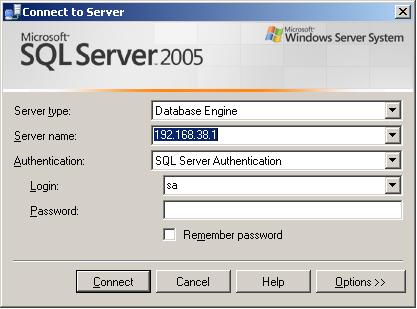
The Server name text box is where the server address (instance) goes. In this example I am using the IP address 192.168.38.1
To specify the port number use a comma and then the port number after it.
E.g. 192.168.38.1, 14333
That’s it, that is all you need to do. You would think something this important would be in the help screen when you press help.

 Stuff From an IT Slug
5 comments
Comments feed for this article
Wednesday, September 23, 2009 at 16:04:26
anon
typically you use a colon.
192.168.38.1:1433
Wednesday, September 23, 2009 at 17:05:18
Brettski
You would think that, though colon has never worked for me in Management studio 2000 or 2003 (haven’t tried it 2008). That was the whole reason for this post, because it wasn’t an obvious port declaration.
Thank you for your comment!
Brett
Tuesday, February 5, 2013 at 3:03:33
concrete loop
My spouse and I stumbled over here coming from a different
page and thought I should check things out.
I like what I see so now i’m following you. Look forward to checking out your web page for a second time.
Wednesday, February 13, 2013 at 8:08:56
John Nelson
Thanks for this – I too couldnt find how to do this so you saved me lots of work
Friday, June 10, 2016 at 4:04:40
jamujawa.hol.es
Thanks for finally talking about >Specifying a Different
Port Number in SQL Management Studio | Stuff From an IT Slug <Liked it!